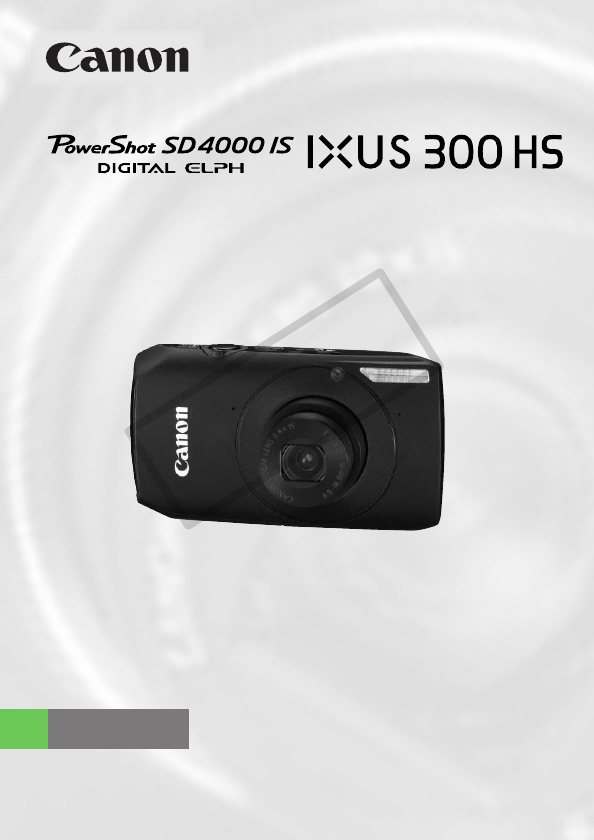
Canon IXY DIGITAL 30 Uživatelská příručka
Procházejte online nebo si stáhněte Uživatelská příručka pro Příslušenství k fotoaparátu Canon IXY DIGITAL 30. Canon IXY DIGITAL 30 User guide Uživatelská příručka
- Strana / 180
- Tabulka s obsahem
- ŘEŠENÍ PROBLÉMŮ
- KNIHY

- Camera User Guide 1
- Checking the Package Contents 2
- Read This First 3
- What Do You Want to Do? 4
- Shoot/View Movies 5
- Print Images 5
- Table of Contents 6
- Safety Precautions 9
- Caution 10
- Getting Started 13
- Charging the Battery 14
- Battery Charge Indicator 15
- About Eye-Fi Cards 16
- Open the cover 17
- Insert the battery 17
- Insert the memory card 17
- Close the cover 17
- Remove the battery 18
- Remove the memory card 18
- Setting the Date and Time 19
- Changing the Date and Time 20
- Setting the Display Language 21
- Formatting Memory Cards 22
- Pressing the Shutter Button 23
- Taking Pictures (Smart Auto) 24
- Scene Icons 25
- What if 26
- Viewing Images 27
- Shooting Movies 29
- Finish shooting 30
- Estimated Shooting Times 30
- Viewing Movies 31
- System Requirements 33
- Preparations 34
- Connect the camera to the 35
- Turn on the camera 35
- Open CameraWindow 35
- Transfer and View Images 36
- Accessories 37
- Separately Sold Accessories 38
- Other Accessories 39
- Printers 39
- Learning More 41
- Components Guide 42
- Control Dial 43
- Screen Display 44
- Indicator 45
- FUNC. Menu – Basic Operations 46
- MENU – Basic Operations 47
- Changing the Sound Settings 48
- Using the p Button 49
- Display the menu 50
- Choose [Reset All] 50
- Reset the settings 50
- Choose [Format] 51
- Perform the low level format 51
- Clock Functions 52
- Shooting in Special 53
- Conditions and Commonly Used 53
- Functions 53
- Modes for other scenes 56
- Adding Effects and Shooting 57
- Using the Wink Self-Timer 60
- Using the Face Self-Timer 61
- Changing the number of shots 62
- Turning the Flash Off 64
- Move the zoom lever toward i 65
- Move it toward i again 65
- Digital Tele-Converter 66
- Inserting the Date and Time 67
- Using the Self-Timer 68
- Choosing Settings Yourself 69
- Shooting in Program AE 70
- Turning the Flash On 71
- Choose a Focus Range 72
- Converter (p. 66) 73
- Changing the ISO Speed 75
- Adjusting the White Balance 76
- Continuous Shooting 77
- Choose My Colors 78
- Custom Color 79
- Customizing the Self-Timer 80
- Shooting Using a TV 81
- Getting More Out 83
- Changing the AF Frame Mode 84
- Magnifying the Focal Point 85
- Shooting with the AF Lock 86
- Shooting with Servo AF 86
- Changing the Metering Method 87
- Shooting with the AE Lock 88
- Shooting with the FE Lock 88
- Shooting with Slow Synchro 89
- Setting the Shutter Speed 90
- Setting the Aperture Value 91
- Red-Eye Correction 93
- Checking for Shut Eyes 94
- Color Accent 95
- Color Swap 96
- Shooting Stitch Assist Images 98
- Using Various Functions for 99
- Changing the Movie Mode 100
- Choose 101
- Changing the Image Quality 102
- AE Lock/Exposure Shift 103
- Other Shooting Functions 104
- Playback Functions 104
- Choose * 105
- Set the editing range 105
- “Viewing Movies” (p. 31) 105
- Check the edited movie 106
- Save the edited movie 106
- Using Various Playback and 107
- Editing Functions 107
- Quickly Searching Images 108
- Choose an image 109
- Choose ‚ 109
- Choose a filter 109
- View the filtered images 110
- Search filters 110
- Viewing Slideshows 111
- Changing the Settings 112
- Checking the Focus 113
- Magnifying Images 114
- Changing Image Transitions 114
- Viewing Images on a TV 115
- Turn off the camera and TV 116
- Connect the camera to the TV 116
- Protecting Images 118
- Choosing Images Individually 119
- Select Range 119
- Choose All Images 120
- Erasing Images 121
- Choose ; 123
- Choose a category 123
- Make the setting 123
- Using the Menu 124
- Tagging Images as Favorites 125
- Rotating Images 127
- Resizing Images 128
- Trimming 129
- Choose [My Colors] 130
- Choose an option 130
- Choose [i-Contrast] 131
- Correcting the Red-Eye Effect 132
- Printing 133
- Printing Images 134
- Print images 135
- Choose 2 (videos will be 136
- Print list 136
- Print Added Images 137
- Print Settings 138
- Choosing the Number of Copies 139
- Set All Images to Print Once 140
- Clearing All Selections 140
- Customizing Camera Settings 141
- Changing Camera Settings 142
- Changing the Start-up Screen 143
- Using the World Clock 146
- Set the world time zone 147
- Choose the world time zone 147
- Displaying the Overlay 150
- Changing the IS-Mode Settings 151
- Useful Information 153
- Using Household Power 154
- Using an Eye-Fi Card 155
- Disabling Eye-Fi Transfer 156
- Troubleshooting 157
- Shooting movies 159
- Playback 159
- Computer 159
- Eye-Fi Card 159
- (pp. 73, 102) / 162
- AF Lock 162
- (pp. 78, 130) 163
- FUNC. Menu 164
- 4 Shooting Menu 166
- *1 *1 *1 167
- *4 {{{{ { {{{{{— {{{{ 167
- 3 Set up Menu 168
- 1 Playback Menu 169
- 2 Print Menu 169
- Handling Precautions 170
- Specifications 171
- Battery Pack NB-6L 173
- Disclaimer 180
Shrnutí obsahu
Camera User GuideENGLISH• Make sure you read this guide before using the camera.• Store this guide safely so that you can use it in the future.COPY
Safety Precautions10Other Warnings• Avoid dropping or subjecting the battery to severe impacts.The above may cause explosions or leaks, resulting in f
100You can choose between four Movie modes.Enter E mode.∆ Set the mode switch to E (p. 42).Choose a Movie mode.∆ After pressing the m button, press th
101You can shoot fast moving subjects and play them back in slow motion. The maximum clip length you can record is approximately 30 seconds long, whic
102You can choose between three image quality settings.Choose the image quality setting.∆ After pressing the m button, press the op buttons or turn th
103You can lock the exposure or change it in 1/3 steps within a range of ±2 before shooting.Focus.∆ Press the shutter button halfway to focus.Lock the
104The following functions can be used in the same way as for still images. Functions marked with a * can be used in the same way as for still images
Editing105Summary of Movie Control Panel in “Viewing Movies” (p. 31)You can trim the beginnings and ends of recorded movies in one-second increments.C
Editing106 Even if you move to a point other than a point, only the portion from the nearest to the left will be trimmed when is chosen. Only t
1077Using Various Playback and Editing FunctionsThis chapter explains various ways to play back and edit images.• Press the 1 button to enter Playback
108Searching Images Using Index DisplayDisplaying multiple images at a time lets you quickly find the image you want.Move the zoom lever toward g. Im
Viewing Images in Filtered Playback109Searching Images Using the Control DialTurn the control dial to quickly search images. You can also jump by the
Safety Precautions11Caution• Do not aim the camera at bright light sources (the sun, etc.).Doing so may cause malfunctions or damage the image sensor.
Viewing Images in Filtered Playback110View the filtered images.∆ Press the op buttons or turn the – dial to choose a filter for playback, then press t
111You can automatically play back images recorded to a memory card. Each image displays for approximately 3 seconds.Choose ..∆ Press the m button to
Viewing Slideshows112Changing the SettingsYou can set a slideshow to repeat, or change transition effects and the time that slideshow images are displ
113You can magnify the area of a recorded image that was inside the AF Frame, or the area of a face that was detected, to check the focus.Press the p
114Move the zoom lever toward k.∆ The display will zoom in on the image and, if you continue to hold the zoom lever, it will continue to zoom in up to
115Using the supplied stereo AV cable (p. 2), you can connect the camera to a TV to view images you have shot.Turn off the camera and TV.Connect the c
116Use the separately sold HDMI Cable HTC-100 to connect the camera to a high-definition TV for an enhanced viewing experience.Turn off the camera and
117The camera will choose four images based on the displayed image.If you choose one of those images, the camera will choose four more images letting
118You can protect important images so that they cannot be accidentally erased with the camera (pp. 28, 121).Choose :.∆ Press the m button to choose :
Protecting Images119Choosing Images IndividuallyChoose [Select].∆ Follow Step 2 on p. 118 to choose [Select] and press the m button.∆Press the qr butt
Protecting Images120∆Press the qr buttons or turn the – dial to choose the image and press the m button.Choose the ending image.∆ Press the r button,
Erasing Images121Protect images.∆Press the op buttons or turn the – dial to choose [Protect] and press the m button.You can select images to erase. Si
Erasing Images122∆Pressing the m button once more deselects the image, and will disappear.∆ To choose multiple images, repeat the above operation.Pr
123You can organize images into categories. You can display the images in a category in Filtered Playback (p. 109) and process all images at once by u
Organizing Images by Category (My Category)124Using the MenuChoose [My Category].∆ Press the n button, choose the 1 tab and [My Category], and press t
Tagging Images as Favorites125Select RangeChoose [Select Range].∆ Follow Step 2 on p. 124 to choose [Select Range] and press the m button.∆ Follow Ste
Tagging Images as Favorites126Using the MenuChoose [Favorites].∆Press the n button, choose the 1 tab and [Favorites], then press the m button.Choose i
127You can change the orientation of an image and save it.Choose \.∆ Press the m button to choose \ in the ø menu, then press the m button again.Rotat
128You can resize images to a lower pixel setting and save the resized image as a separate file.Choose [Resize].∆ Press the n button and choose the 1
129You can cut out a portion of a recorded image and save it as a new image file.Choose [Trimming].∆ Press the n button, choose the 1 tab and [Trimmin
131Getting StartedThis chapter explains preparations before shooting, how to shoot in A mode, and then how to view and erase the images you take. The
Adding Effects with the My Colors Function130You can change the color of an image and save it as a separate image. Refer to p. 78 for details on each
131The camera can detect areas in an image, such as faces or backgrounds, that are too dark and automatically adjust them to the optimum brightness. A
132You can automatically correct red eyes in images and save them as new files.Choose [Red-Eye Correction].∆ Press the n button, choose the 1 tab and
1338PrintingThis chapter explains how to choose images for printing, and print using a Canon-brand PictBridge capable printer (sold separately, p. 39
134You can easily print the pictures you take by connecting the camera to a PictBridge compliant printer using the supplied interface cable (p. 2).Tur
Printing Images135Print images.∆ Press the m button to choose 2 in the ø menu, then press the m button again.∆ The Print Settings screen will appear.∆
136You can add images to the print list (DPOF) directly after shooting or during playback by using the ø menu. You can print from a print list simply
Printing from the Print List (DPOF)137Print Added ImagesThe following examples use the Canon SELPHY series printers.Connect the camera to the printer.
138You can choose up to 998 images on a memory card for printing and specify settings such as the number of copies so that they can be printed togethe
Choosing Images for Printing (DPOF)139Choosing the Number of CopiesChoose [Select Images & Qty.].∆ Press the n button and choose the 2 tab, then c
14Use the included charger to charge the battery. Be sure to charge the battery as it is not charged at the time of purchase.Remove the cover.Insert t
Choosing Images for Printing (DPOF)140Select RangeChoose [Select Range].∆ In Step 1 on p. 139, choose [Select Range] and then press the m button.∆ Cho
1419Customizing Camera SettingsYou can customize various settings to suit your shooting preferences.The first part of this chapter explains convenient
142You can customize convenient and commonly used functions from the 3 tab (p. 47).Change SoundsYou can change each of the camera's operation sou
Changing Camera Settings143Changing the Start-up ScreenYou can change the start-up image that appears on the screen when you turn on the camera.∆ Choo
Changing Camera Settings144Changing the File Number AssignmentImages you shoot are automatically assigned file numbers in the order they were taken, f
Changing Camera Settings145Changing the Lens Retract TimeFor safety reasons, the lens retracts about 1 minute after pressing the 1 button when in a Sh
Changing Camera Settings146Setting the Screen Shut-Off TimeYou can adjust the time the screen takes to shut off automatically (p. 52). This also works
Changing Camera Settings147Set the world time zone.∆ Press the op buttons or turn the – dial to choose [ World], then press the m button.∆ Press the
148If you set the mode switch to 4 and the mode to G, you can change the settings in the 4 tab (p. 47).Turning Off the AF Assist BeamThe lamp will aut
Changing Shooting Function Settings149Changing the Image Display Time Right After ShootingYou can change the length of time the images display right a
Charging the Battery15Approximate Number of Shots That Can Be Taken• The number of shots that can be taken is based on the Camera & Imaging Produc
Changing Shooting Function Settings150Displaying the OverlayYou can display gridlines for vertical and horizontal guidance, or a 3:2 guide to confirm
Changing Shooting Function Settings151Changing the IS-Mode Settings∆ Choose [IS Mode], then press the qr buttons to choose an option.ContinuousImage s
152You can adjust the settings in the 1 tab by pressing the 1 button (p. 47).Choosing the Image that First Displays in Playback∆ Choose [Resume], then
15310Useful InformationThis chapter introduces how to use the AC adapter kit and Eye-Fi card (both sold separately), troubleshooting tips, and contain
154If you use AC Adapter Kit ACK-DC40 (sold separately), you can use the camera without worrying about how much charge is left in the battery.Turn off
155Before using an Eye-Fi card, be sure to check whether Eye-Fi card use is authorized in the country or territory of use (p. 16).When you put a prepa
Using an Eye-Fi Card156Checking Connection InformationYou can check the Eye-Fi card's access point SSID, or connection status.Choose [Connection
157If you think there is a problem with the camera, first check the following. If the items below do not solve your problem, contact a Canon Customer
Troubleshooting158Even when you press the shutter button halfway, the AF frame does not appear, and the camera does not focus.• If you center on the l
Troubleshooting159Shooting moviesCorrect shooting time does not display, or stops.• Format the memory card in the camera, or use a memory card capable
16• SD memory cards (2 GB and less)*• SDHC memory cards (more than 2 GB, up to and including 32 GB)*• SDXC memory cards (more than 32 GB)* • MultiMedi
160If error messages appear on the screen, try one of the following solutions.No memory card• The memory card is not installed in the correct directio
List of Messages That Appear on the Screen161Invalid selection range• When choosing the selection range (pp. 119, 122, 125, 140), you tried to choose
162Shooting (Information Display)* : Standard / : Held verticallyWhen shooting, the camera detects if it is held vertically or horizontally, and adju
Information Displayed on the Screen163Playback (Detailed Information Display)Print List (p. 136)My Category (p. 123)Shooting Mode (p. 42)ISO Speed (p.
164*1 Not selectable, but turned on whenever flash is used.*2 White Balance data not recordable.*3 Recording pixels are fixed to .*4 Unavailable when
Functions Available in Each Shooting Mode165{ Selectable, or set automatically. — Not selectable4E’ TY w O P t vx E >z{{{{{{ — {{{{{{ { —— ———————
1664 Shooting Menu*1 AiAF only.*2 [On] when movement of people is detected.*3 Fixed to [Auto].*4 Fixed to [Continuous].Shooting ModeA4B M G I F VFunct
Menus167{ Selectable, or set automatically. — Not selectable4E’ TY w O P t vx E >z{{{{{{ { ——{{{——*1 *1 *1{ ———{ — {{— {{{{ { —— ——————— — —————— —
Menus1683 Set up MenuItem Options/Summary Ref. PageMute On/Off*p. 48Volume Set all operation sounds (5 levels). p. 48Sound Options Set the sounds for
Menus1691 Playback Menu2 Print MenuItem Options/Summary Ref. PageSlideshow Plays back images automatically. p. 111Erase Erases images. p. 121Protect P
Inserting the Battery and Memory Card17Open the cover.∆ Slide the cover and open it .Insert the battery.∆ Insert the battery as shown until it lock
170• This camera is a high-precision electronic device. Do not drop it or subject it to strong impacts.• Never place the camera close to magnets, moto
171Camera Effective Pixels... Approx. 10.0 millionImage Sensor ... 1/2.3-inch type CMOS (Total number of pixels: Approx.
Specifications172Recording Media...SD memory card, SDHC memory card, SDXC memory card, MultiMediaCard, MMCplus memory card, HC MMCpl
Specifications173Battery Pack NB-6LType... Rechargeable lithium-ion batteryVoltage...
174Numerics3:2 Guide ... 150AAC Adapter Kit ... 38, 154Accessories...
Index175Filtered Playback ... 109Fireworks (Scene Mode)... 56Fish-eye Effect (Scene Mode) ...
Index176PPackage Contents J AccessoriesPanoramic Photos... 98Personal Printing Guide ... 2PictBridg
Index177WWhite Balance... 76Wide (Recording Pixels) ... 73, 74Wink Self-Timer ...
178MEMOCOPY
179MEMOCOPY
Inserting the Battery and Memory Card18Removing the Battery and Memory CardRemove the battery.∆ Open the cover and press the battery lock in the direc
Disclaimer• Reprinting, transmitting, or storing in a retrieval system any part of this guide without the permission of Canon is prohibited.• Canon re
19The Date/Time settings screen will appear the first time the camera is turned on. Since the dates and times recorded into your images are based on t
2Check if the following items are included in your camera package. If anything is missing, contact the retailer from which you purchased the camera.Us
Setting the Date and Time20Changing the Date and TimeYou can change the current date and time settings.Display the menu.∆ Press the n button.Choose [D
21You can change the language that displays on the screen.Enter Playback mode.∆ Press the 1 button.Display the settings screen.∆ Press and hold the m
22Before you use a new memory card or one that has been formatted in other devices, you should format the card with this camera.Formatting (initializi
23To take images that are in focus, be sure to first press the shutter button lightly (halfway) to focus, then press fully to shoot.Press halfway (lig
24Since the camera can determine the subject and shooting conditions, you can let it automatically select the best settings for the scene and just sho
Taking Pictures (Smart Auto)25 When the camera focuses, it will beep twice and AF frames will appear where the camera focused.Several AF frames will
Taking Pictures (Smart Auto)26• What if white and gray frames appear when you point the camera toward a subject?When faces are detected, a white frame
27You can view the images you have taken on the screen.Enter Playback mode.∆ Press the 1 button. The last image you took will appear.Choose an image.
28You can choose and erase images one at a time. Please note that erased images cannot be recovered. Exercise adequate caution before erasing an image
29The camera can automatically select all settings so that you can shoot movies just by pressing the shutter button. The audio will record in stereo.I
3Test Shots and DisclaimerTake some initial test shots and play them back to make sure the images were recorded correctly. Please note that Canon Inc.
Shooting Movies30 Recording will start, and [ Rec] and the elapsed time will appear on the screen.∆ Once shooting begins, take your finger off the sh
31You can view the movies you have shot on the screen.Enter Playback mode.∆ Press the 1 button. The last image you took will appear. appears on mov
Viewing Movies32• Install the included software (p. 34).• When watching a movie on a computer, frames may drop, it may not play smoothly, and the audi
33You can use the included software to transfer images you have shot with the camera to a computer for viewing.If you are already using ZoomBrowser EX
Transferring Images to a Computer for Viewing34PreparationsWindows Vista and Mac OS X (v10.5) are used for these explanations.Install the Software.Win
Transferring Images to a Computer for Viewing35Connect the camera to the computer.∆ Turn off the camera.∆ Open the cover, and insert the included inte
Transferring Images to a Computer for Viewing36Transfer and View Images∆ Click [Import Images from Camera], and then click [Import Untransferred Image
37AccessoriesWrist StrapWS-DC7Interface Cable IFC-400PCU*DIGITAL CAMERA Solution DiskStereo AV Cable AVC-DC400ST*Supplied with CameraBattery Pack NB-6
38The following camera accessories are sold separately. Some accessories are not sold in some regions, or may no longer be available.Power SuppliesAC
Separately Sold Accessories39FlashHigh-Power Flash HF-DC1This attachable supplementary flash can be used to capture photographic subjects that are too
4What Do You Want to Do?4● Shoot, leaving it to the camera to make settings ...24● Shoot to match special conditions...
412Learning MoreThis chapter explains the parts of the camera and what appears on the screen, as well as the basic operating instructions.COPY
42Mode SwitchUse the mode switch to change the Shooting mode.Components GuideLamp (pp. 59 – 61, 68,148)Microphone (p. 30)LensZoom LeverShooting: i (Te
Components Guide43Control DialTurning the control dial allows you to perform operations such as choosing items or switching images. Except for a few o
44Switching the DisplayYou can change the screen display using the p button. Refer to pp. 162 –163 for details on information that appears on the scre
Indicator45Screen Display in Dark Conditions during ShootingThe display automatically brightens when shooting in dark conditions, allowing you to chec
46Commonly used shooting functions can be set with the ø menu. The menu items and options differ depending on the mode (p. 164). You can also use the
47Various functions can be set from the menus. The menu items are organized under tabs, such as for shooting (4) and playback (1). The available menu
48You can silence or adjust the volume of camera sounds.Muting SoundsDisplay the menu.∆ Press the n button.Choose [Mute].∆Press the qr buttons to choo
49The screen brightness can be changed in two ways.Using the MenuDisplay the menu.∆ Press the n button.Choose [LCD Brightness].∆Press the qr buttons t
What Do You Want to Do?5View1● Look at my pictures ...27● Automatically play back p
50When you have mistakenly changed a setting, you can reset the camera to the default settings.Display the menu.∆ Press the n button.Choose [Reset All
51Perform low level formatting when you think that the recording/reading speed of a memory card has dropped. Performing a low-level format on (initial
Power Saving Function (Auto Power Down)52To save battery power, the camera shuts down automatically when it is not operated for a certain time.Power S
533Shooting in Special Conditions and Commonly Used FunctionsThis chapter explains how to shoot in different conditions, as well as how to use common
54The camera will select the necessary settings for the conditions in which you wish to shoot when you choose the matching mode.Set the mode switch to
Shooting in Various Conditions55V Take shots of kids and pets (Kids&Pets)∆ Lets you capture subjects that move around, such as children and pets,
Shooting in Various Conditions56P Take shots of people in snow (Snow)∆ Lets you take bright, natural-colored shots of people against snowy backgrounds
57You can add various effects to images when shooting.Shoot with the Effects of a Fish-Eye Lens (Fish-eye Effect)Lets you shoot with the distorting ef
Adding Effects and Shooting58Take Shots that Look Like a Miniature Model (Miniature Effect)Blurs chosen portions in the top and bottom of an image to
59The camera will shoot three times, even without pressing the shutter button, when it detects a smile.Choose .∆ Follow Steps 1 – 2 on p. 54 to choose
6Chapters 1 – 3 explain the basic operations and frequently used functions of this camera. Chapters 4 onward explain the advanced functions, letting y
60Point the camera at the subject and press the shutter button fully. The camera will shoot three times approximately two seconds after it detects a w
Using the Face Self-Timer61To take a photo that includes the photographer, such as a group photo, compose the shot and press the shutter button. The c
Using the Face Self-Timer62Press the shutter button fully. The camera will enter shooting stand-by, and [Look straight at camera to start count down]
63You can shoot continuously at a maximum speed of approximately 8.4 images/second while the shutter button is pressed fully and held.Recording pixels
64You can shoot with the flash turned off.Press the r button.Choose !.∆ Press the qr buttons or turn the – dial to choose !, then press the m button.
65You can use the digital zoom to zoom up to a maximum of 15x and capture subjects that are too far away for the optical zoom to enlarge. The images m
Zooming in More Closely on Subjects (Digital Zoom)66Digital Tele-ConverterThe focal length of the lens can be increased by an equivalent of 1.4x or 2.
67You can insert the shooting date and time in the lower right corner of an image. Once inserted, however, they cannot be deleted. Be sure to check be
68The self-timer can be used to shoot a group photo that includes the photographer. The camera will activate approximately 10 seconds after the shutte
694Choosing Settings YourselfIn this chapter you will learn how to use the various functions in G mode to progressively advance your shooting skills.•
Table of Contents7Changing the ISO Speed... 75Adjusting the White Balance ... 76Continuous Shooting... 77Chan
70You can choose the settings for various functions to suit your preferences.AE stands for Auto Exposure.Set the mode switch to 4 (p. 42).Choose G.∆ C
71You can adjust the standard exposure set by the camera in 1/3-stop increments in the range of –2 to +2.Enter Exposure Compensation mode.∆ Press the
72When it is difficult to focus because your shot contains subjects that are both near and far, you can change the focus range (the distance range fro
73You can choose from six recording pixels (image size) settings.Choose the recording pixel setting.∆ After pressing the m button, press the op button
Changing the Compression Ratio (Image Quality)74Approximate Values for Recording Pixels and Compression Ratio• The values in the table are measured ac
75Choose the ISO speed.∆ After pressing the m button, press the op buttons or turn the – dial to choose , then press the m button.Choose an option.∆Pr
76The white balance (WB) function sets the optimal white balance for natural looking colors to match the shooting conditions.Choose the white balance
77You can shoot continuously at a maximum speed of approximately 3.7 images/second while the shutter button is pressed fully and held.Choose a Drive m
78You can change the tone of an image to sepia or black and white when shooting.Choose My Colors.∆ After pressing the m button, press the op buttons o
Shooting Using the Two Second Self-Timer79Custom ColorThe contrast, sharpness, color saturation, red, green, blue, and skin tones in an image can be c
Conventions Used in This Guide89. Customizing Camera Settings... 141Changing Camera Settings...142Changing Shooting Function Settin
80You can set the time delay (0 – 30 seconds) and the number of shots (1 – 10 shots).Choose $.∆ After pressing the m button, press the op buttons or t
81You can use a TV to display the camera screen content while shooting.• Connect the camera to a TV as described in “Viewing Images on a TV” (p. 115).
82COPY
835Getting More Out of Your CameraThis chapter serves as the advanced version of Chapter 4 and explains how to take pictures using various functions.•
84You can change the AF (Auto Focus) frame mode to match the conditions you want to shoot.Choose [AF Frame].∆ Press the n button, choose the 4 tab, an
Magnifying the Focal Point85If you press the shutter button halfway, the AF frame will magnify and you can check the focus.Choose [AF-Point Zoom].∆Pre
86The focus can be locked. After locking the focus, the focal distance will not change even when you release your finger from the shutter button.Lock
Changing the Metering Method87You can change the metering method (brightness measuring function) to match the shooting conditions.Choose the Metering
88You can lock the exposure and shoot, or set the focus and exposure separately to shoot. AE stands for “Auto Exposure”Lock the exposure.∆ Point the c
89You can make the main subject, such as people, appear bright by having the camera provide the appropriate illumination with the flash. At the same t
9• Before using the camera, please ensure that you read the safety precautions described below. Always ensure that the camera is operated correctly.•
90You can set the shutter to the speed at which you want to shoot. The camera will set the appropriate aperture value for the shutter speed you set.M
91You can set the aperture to a value at which you want to shoot. The camera will set the appropriate shutter speed for the aperture value you set.B s
92The camera can detect areas in the scene, such as faces or backgrounds, that are too bright or dark and automatically adjust them to the optimum bri
93You can automatically correct red-eye that occurs in images taken with the flash.Choose [Flash Settings].∆ Press the n button, choose [Flash Setting
94When the camera detects the possibility that people have their eyes shut, appears.Choose [Blink Detection].∆ Press the n button, choose the 4 tab,
95You can change the look of an image when shooting. However, depending on shooting conditions the image may become coarse, or the colors may not come
Changing the Color and Shooting96Color SwapYou can swap one color in an image for another when recording it. You can only swap one color.Choose Y.∆ Fo
Changing the Color and Shooting97Specify the range of colors to be swapped.∆ Press the op buttons or turn the – dial to adjust the range of colors aff
98Large subjects can be split into several shots that can later be merged together using the included software on a computer to create a panoramic ima
996Using Various Functions for Shooting MoviesThis chapter provides more advanced information than the “Shooting Movies” and “Viewing Movies” sections
Související produkty a manuály pro Příslušenství k fotoaparátu Canon IXY DIGITAL 30
 (200 stránky)
 (260 stránky)
© 2020, manymanuals.cz. Všechna práva vyhrazena. | 0.044 s |
 Manymanuals.com
 Manymanuals.de
 Manymanuals.fr
 Manymanuals.it
 Manymanuals.pl
 Manymanuals.cz
 Manymanuals.es
 Manymanuals-pt.com
Komentáře k této Příručce